

In last night’s rehearsal, I noticed that another horn player was having trouble with forScore on their iPad. Instead of its usual full-screen appearance, forScore was displaying in its own window and only occupying a portion of the screen. There was also something that looked like the macOS dock at the bottom of the screen. My section mate had not seen this happen before, and they struggled with how to get back to the full-screen display.
In this post, I’ll briefly explain the related iPadOS 26 changes, how to get back to full-screen display if this happens to you, and how to force your iPad to always stay in full-screen mode.
Window Management Changes in iPadOS 26
Here is a comparison of the traditional full-screen display and the new display in a separate window.
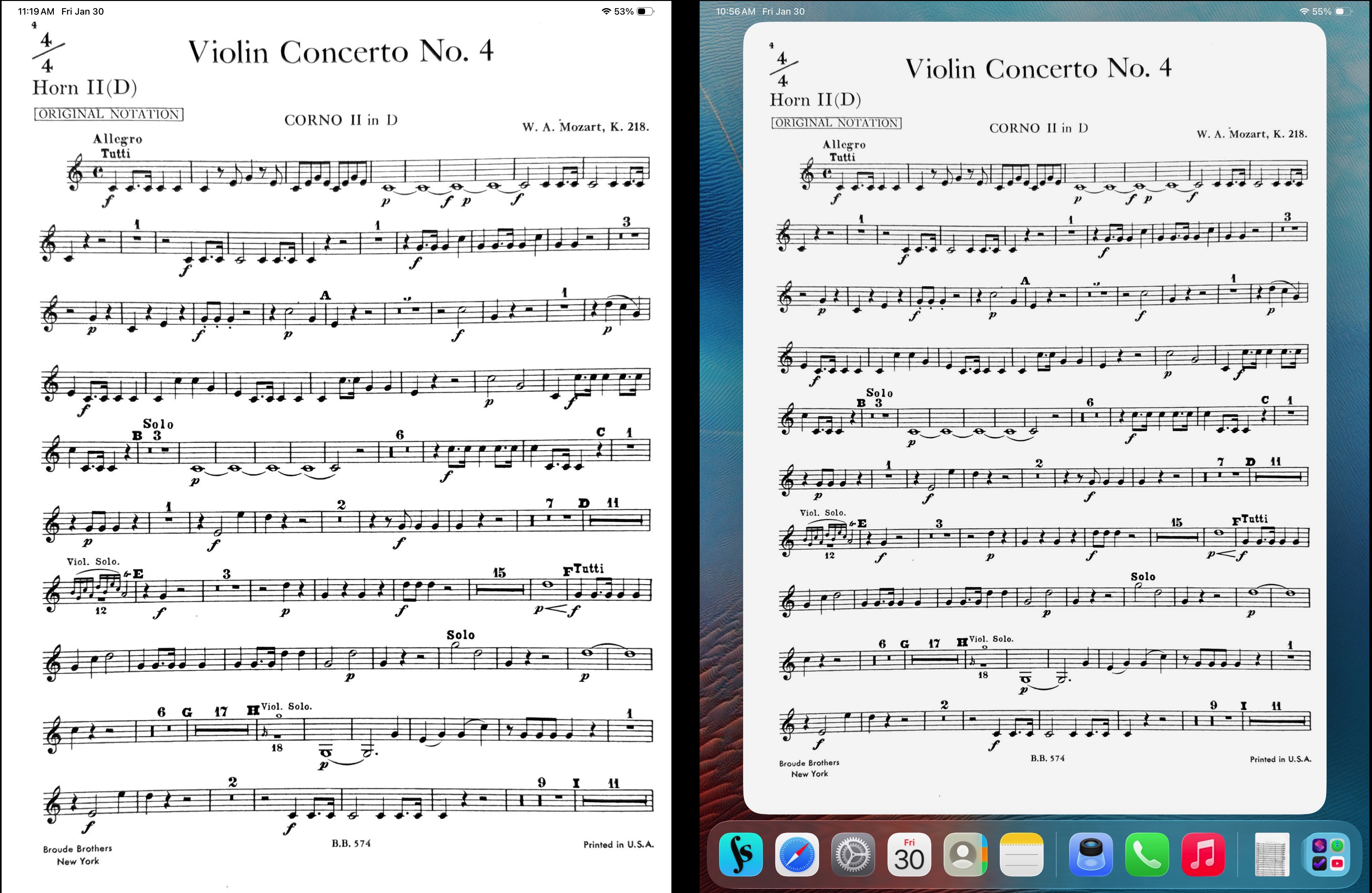
forScore in its typical full-screen display mode (left) and as a separate window (right)
Originally, the active iPad app always occupied the full screen. Over time, Apple has experimented with different multitasking solutions, such as Slide Over, Split View, and Stage Manager. Now, in the iPadOS 26 release, Apple has introduced a full-blown windowing and multitasking system based on the Mac.
If you want to read more about how all this works, I recommend “iPadOS 26 Slide Over: What changed, what replaced it, and how to recreate it,” (the Mac Observer, 20-Sep-2025), as well as the Apple Support document “Multitask on iPad with iPadOS 26.”
How to Get Back to Full-Screen Display
If you have somehow gotten forScore into a separate window, and you want to get it back to full screen, here are a few ways to do that.
Method 1: The Three Dots
The new multitasking system includes the typical Mac “three dots” at the upper left of a window. The red, yellow, and green dots are for closing the window, minimizing, and maximizing a window.
Confusingly, the forScore app doesn’t normally show these dots in window mode. You have two make them appear by tapping once at the upper left of the window to show the dots, and then tapping them a second time to activate them. Finally, tap on the green button to maximize the window.
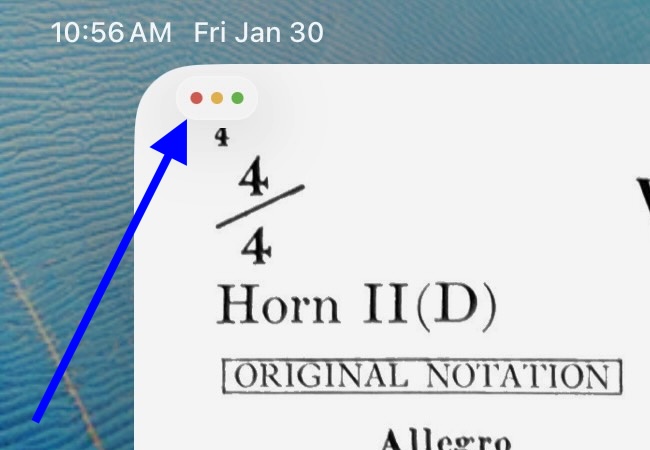
Tapping the upper-left corner of the forScore window makes the three dots become visible.
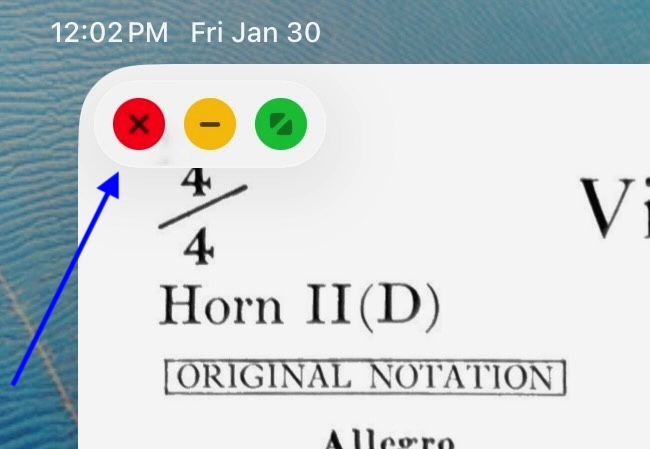
Tapping the upper-left corner again activates the three dots for window control. Tap the green dot to maximize the forScore window.
Method 2: App Menubar
With the new windowing and multitasking system in iPadOS 26, Apple has given the active app a menubar at the top of the screen, just like the active app on the Mac has a menubar at the top of the green. To show the app’s menubar on the iPad, swipe down from the top of the screen. The forScore menubar looks like this:
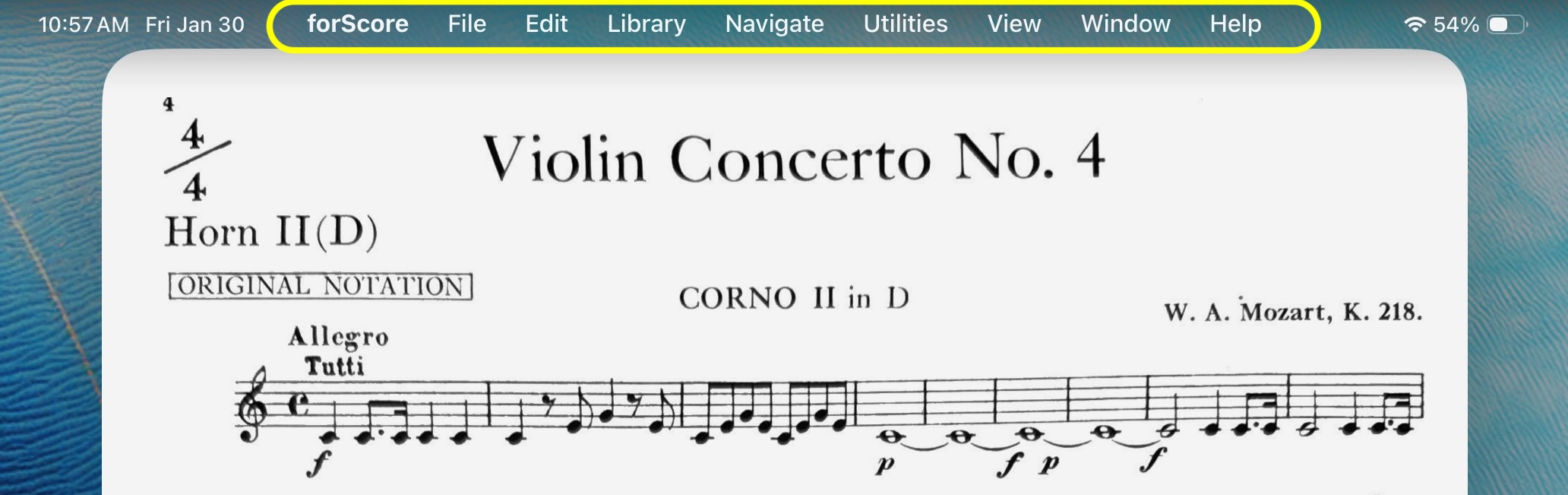
The forScore app menubar (circled in yellow).
The Window menu selection offers various window-related actions, including “Enter Full Screen.” Note also the actions for creating and switching between multiple forScore windows. I can imagine that this might enable a variety of new, useful forScore workflows.
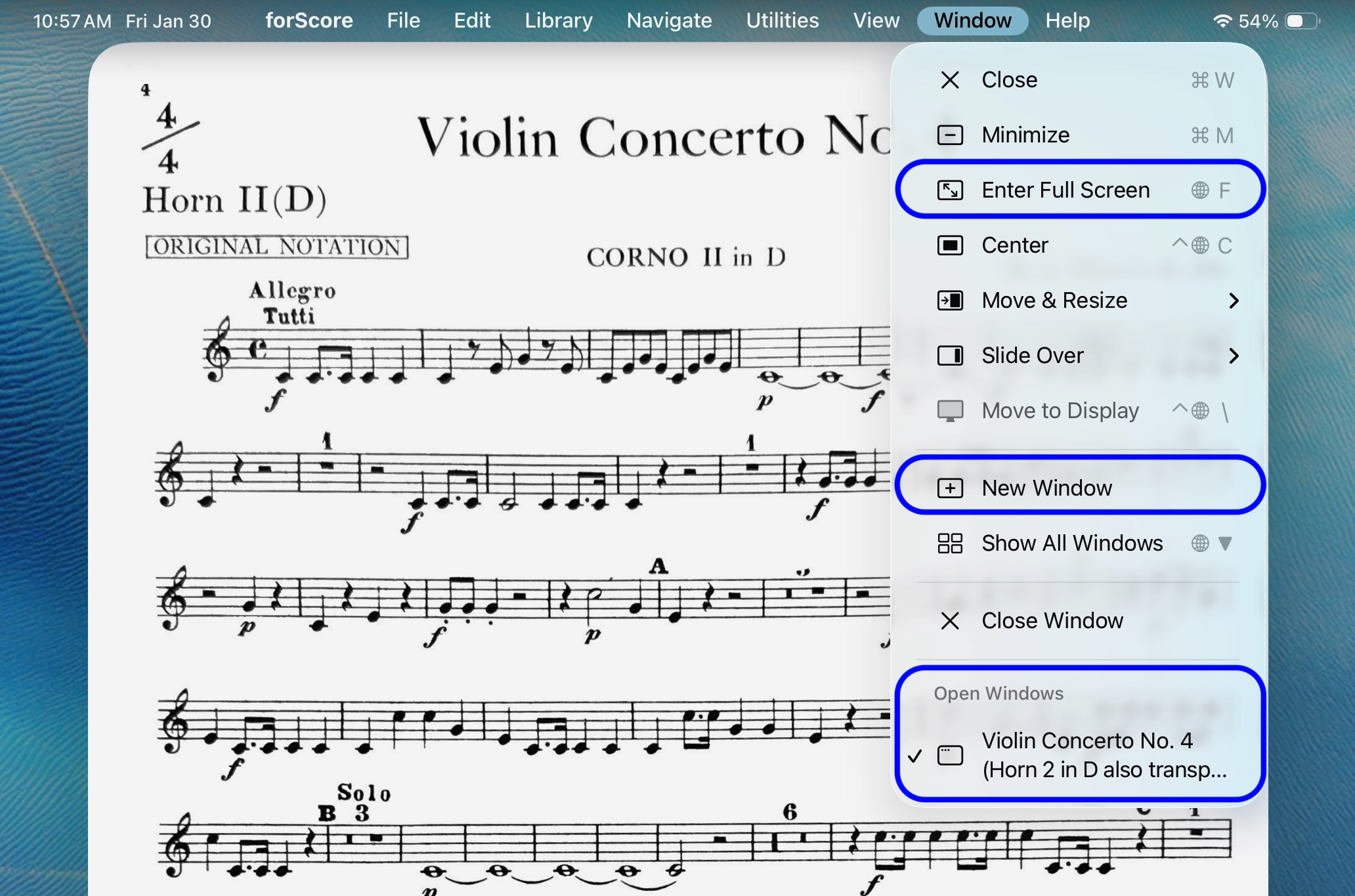
The forScore Window menu.
Method 3: Control Center
On the iPad (and the iPhone), Control Center provides quick access to a variety of system-level controls and general utilities. To open Control Center, swipe down from the top-right corner of the screen. iPadOS 26 has added a windows and multitasking button (see the example below) to Control Center that lets you quickly toggle back and forth between different modes. If your iPad is in multiple window mode, just tap on the button in the Control Center to immediately switch back to full-screen app mode.
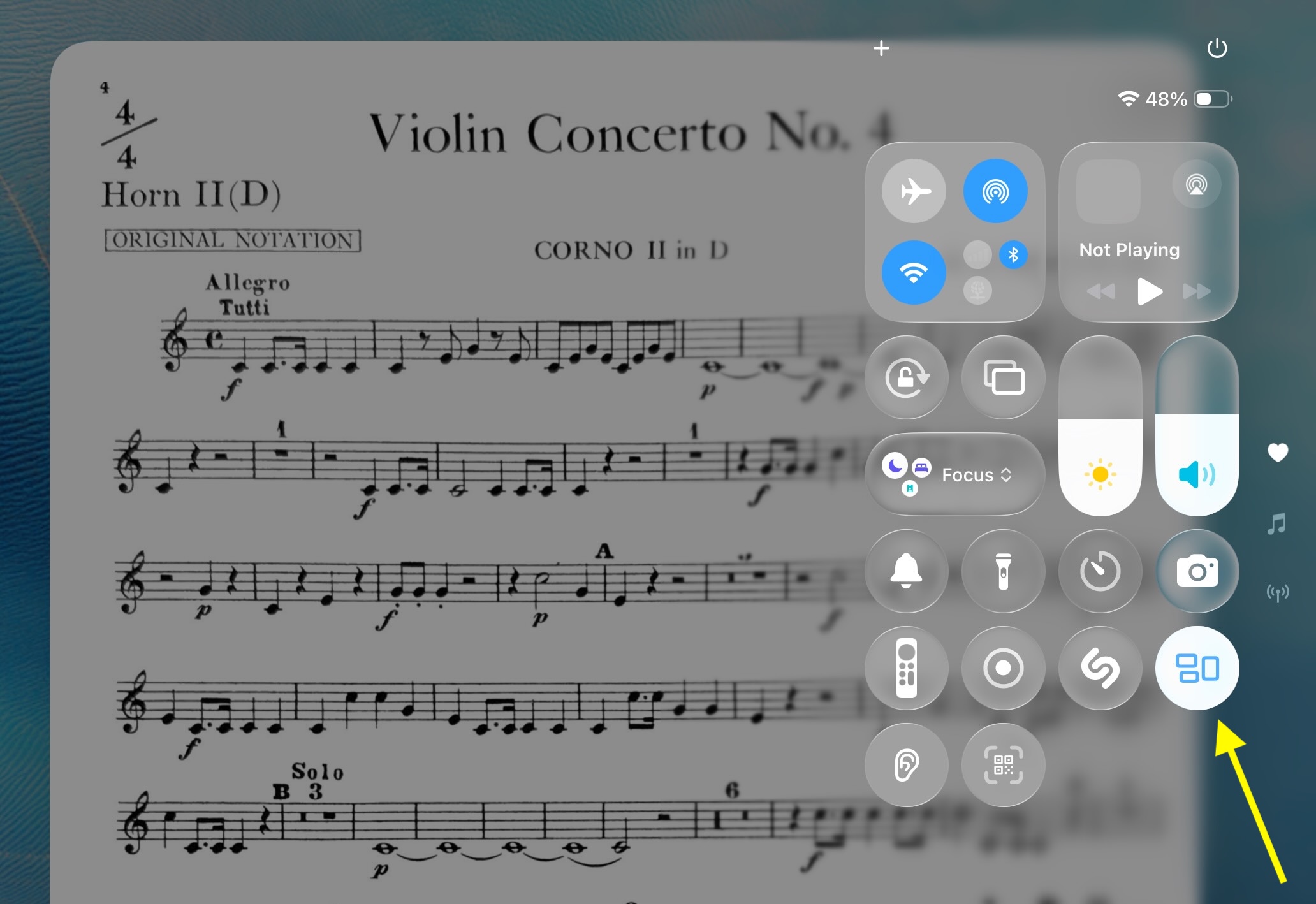
The window multitasking toggle button in Control Center.
iPad Settings
If you wish, you can make your iPad always stay in full-screen app mode. Open Settings, select “Multitasking & Gestures,” and then choose between “Full Screen Apps” and “Windowed Apps.”
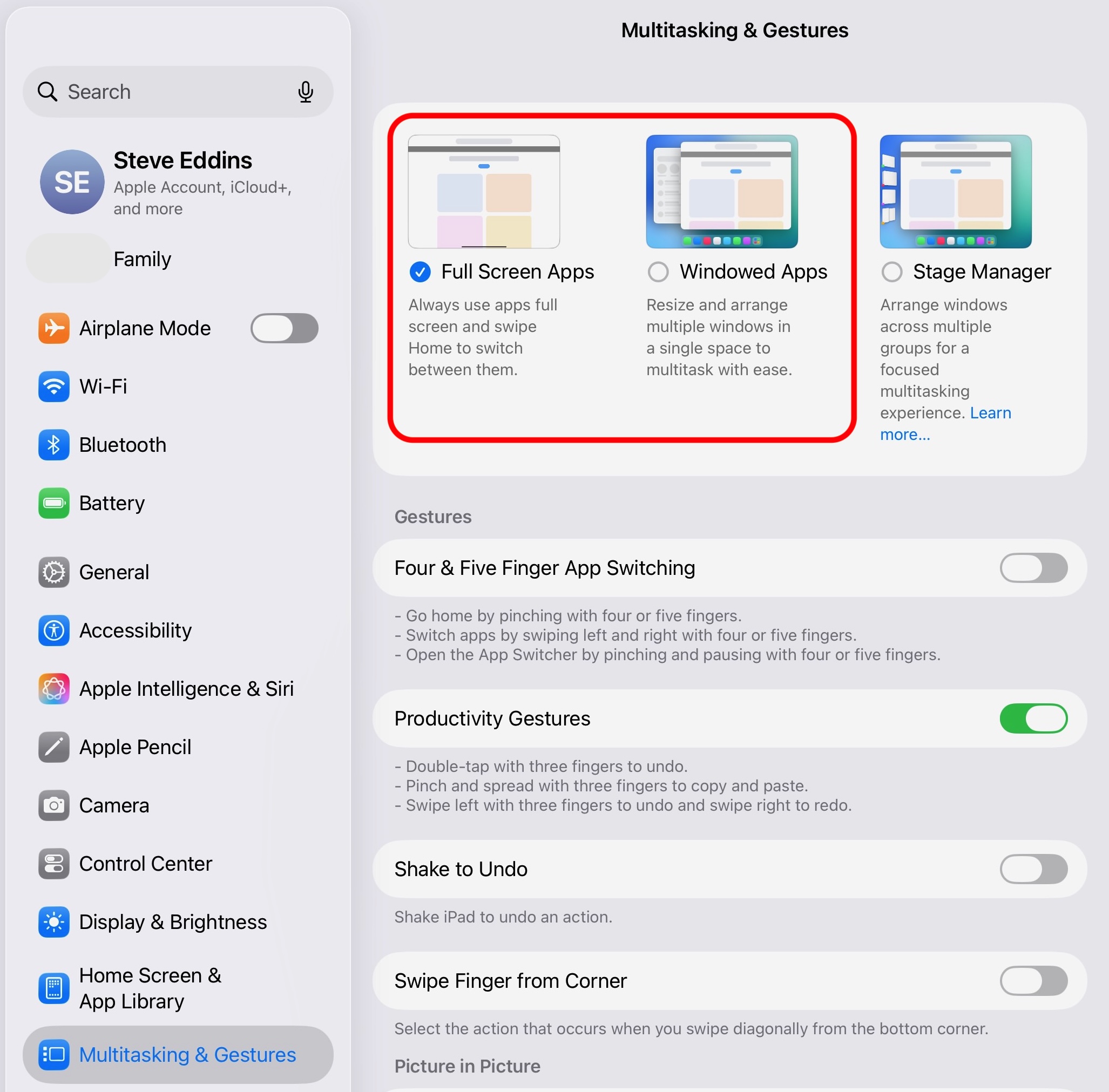
Choose your default multitasking behavior in Settings.